Verify your Meta Business Account
Written By Bram Haenraets
Last updated About 4 hours ago
To use WhatsApp Business Platform with Viqal, your hotel needs a Meta Business Portfolio with the correct business information.
Meta may require your business to complete Business Verification. During this process, Meta verifies that your business is a legitimate registered business and may ask for supporting documentation.
Important: Meta Business Verification is different from WhatsApp display-name approval. Your WhatsApp display name can be approved even if your business has not yet completed Business Verification.
Before you start
Make sure that:
You have administrator access to your hotel's Meta Business Portfolio.
The legal business name and address in Meta match your official business records.
Your hotel's website is live and contains information about the business.
You have access to the business email address or phone number that Meta may use for verification.
You have your business registration documents available if Meta requests them.
1. Open Meta Business Settings
Go to Meta Business Manager and select your hotel's Business Portfolio in the top-left corner.
2. Open the Security Centre
In the left-hand menu, go to:
Settings → Security Centre
Look for the Business Verification section.
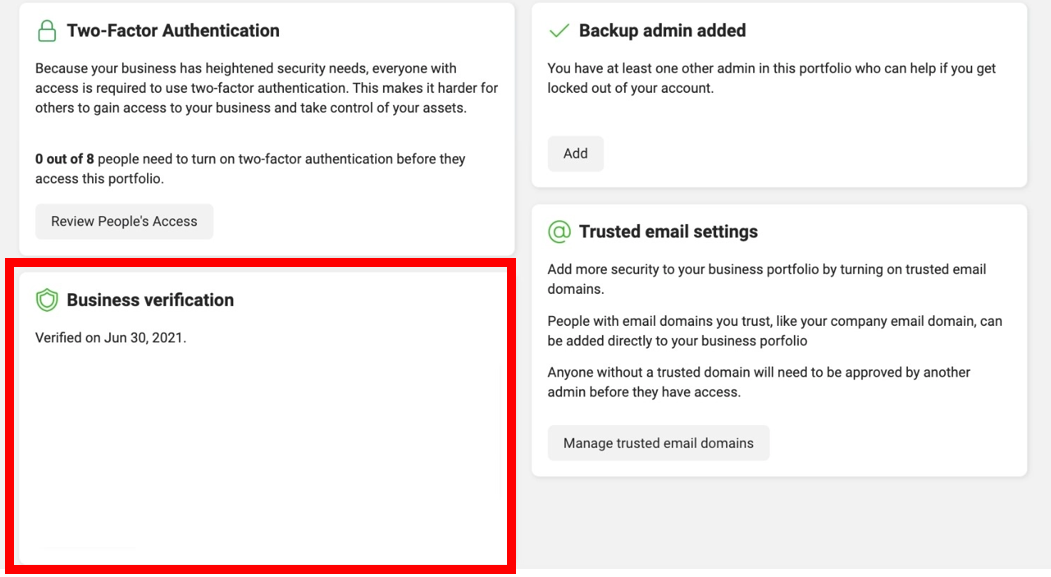
Your status may show that your business is already verified, that verification is required, or that verification is currently in progress.
3. Start Business Verification
If Meta asks you to verify your business, click Start verification and follow the instructions shown by Meta.
Meta may ask you to provide information such as:
Legal business name
Business address
Website
Business registration information
Business documents
Contact information
Enter the information exactly as it appears in your official business records.
4. Complete Meta's verification checks
Depending on your business and location, Meta may ask you to confirm your business details or verify a contact method.
Follow the verification steps shown in your Meta account.
The exact verification process can vary because Meta determines which information and documents are required.
5. Wait for Meta's review
Once you submit the requested information, Meta reviews your application.
You can return to:
Settings → Security Centre
to check the status.
If Meta requests additional information, complete the requested steps from there.
Note: Viqal cannot approve or complete Meta Business Verification on your behalf. Meta handles the verification and makes the final decision.
Business Verification vs. WhatsApp approval
There are several different approval statuses you may encounter when setting up WhatsApp.
They should not be confused with each other:
For example, a hotel can have an approved WhatsApp display name while Business Verification is still pending.
Once verification is complete
After your Meta Business Portfolio has been verified, return to your WhatsApp Business Account and check its status.
Continue with: Set up and check your WhatsApp Business Account (WABA)